

Every week, business owners and their teams lose hours to tasks that should not require their direct attention. Sorting through email threads, tracking down files, preparing meeting notes, updating spreadsheets, and coordinating schedules across multiple tools add up to a significant drain on productivity. For remote teams and virtual assistants managing marketing and admin support, this problem is even more pronounced.
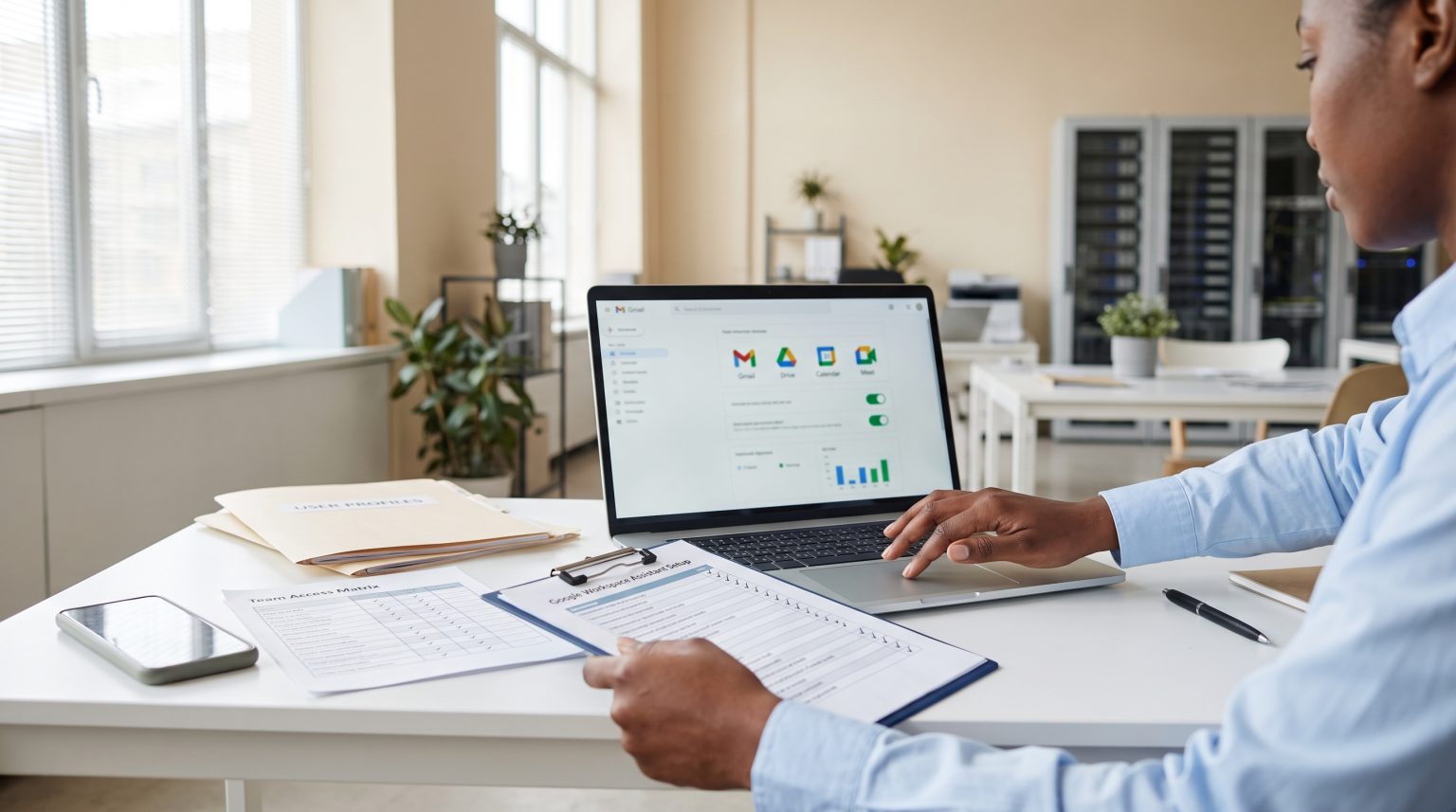
The good news is that Google Workspace, now deeply integrated with Gemini AI, has evolved into a genuine productivity platform that can automate many of these recurring tasks. A well-configured Google Workspace assistant setup can transform how your team operates, freeing up time for higher-value work. This guide walks you through exactly how to make that happen.
What Is a Google Workspace Assistant and What Does Gemini AI Add?
Google Workspace is the suite of cloud-based tools most businesses already use: Gmail, Drive, Calendar, Meet, Chat, Docs, Sheets, and Slides. What Gemini AI adds is an intelligent, context-aware assistant layer that works across all of these tools simultaneously.
Rather than switching between apps to find information or complete tasks, users can now interact with Gemini directly inside the tools they already use. It can draft emails, summarize meeting notes, find files, generate content, manage tasks, and even troubleshoot admin issues. For businesses working with dedicated virtual assistants, this means those assistants can now work faster, with fewer errors, and at a higher level of output.
Step-by-Step: Enabling Gemini AI in Google Workspace
Before your team can benefit from Gemini, an administrator needs to enable it through the Workspace Admin Console. Here is how to do it:
- Check your plan eligibility. Gemini features are available on Business Standard, Business Plus, Enterprise Standard, Enterprise Plus, and Google AI Pro for Education. Some features are also available on Business Starter and AI Expanded Access tiers. Confirm your plan before proceeding.
- Access the Admin Console. Log in at admin.google.com using your administrator credentials.
- Navigate to Generative AI settings. Go to Generative AI, then select Gemini for Workspace.
- Enable Gemini Beta features. By default, Gemini Beta is turned off. You can enable it organization-wide or for specific groups or organizational units. This flexibility allows you to run a pilot test with a smaller team before rolling it out to everyone.
- Enable Workspace Intelligence. Ensure that both Gemini in Workspace in Chat and Workspace Intelligence for all apps are turned on. End users must also be enrolled in Workspace Smart Features for Ask Gemini to function in Google Chat.
- Review data privacy settings. Enabling Gemini Beta applies the same data protection standards as all other Workspace services. Admins agree to Google’s Pre-General Availability Offering Terms, which maintain the same data processing obligations as generally available features.
Key Features That Support Time Management
Once your Google Workspace assistant setup is complete, these are the features that will have the most immediate impact on how your team manages time.
Ask Gemini in Chat
Ask Gemini in Chat is a unified command interface built directly into Google Chat. Users can search across Gmail, Drive, and Calendar without leaving the conversation. They can draft content, catch up on missed threads, manage tasks, and schedule meetings using a single interface. It is accessible through the Chat Shortcuts menu or via the keyboard shortcut Ctrl+G on Windows or Cmd+G on Mac. This feature replaces the older Gemini side panel in Chat, consolidating its functions into a more streamlined experience.
Workspace Studio Skills
Workspace Studio allows teams to build reusable prompts, rules, and templates that can be applied consistently across Gmail, Docs, Slides, Drive, and Chat. Instead of requiring every team member to become proficient in AI prompting, you can standardize best practices and package them into repeatable automations. This is particularly useful for tasks like onboarding sequences, proposal generation, and marketing report preparation.
Sheets Canvas
Sheets Canvas lets users generate interactive dashboards and workflow tools from live spreadsheet data using natural language prompts. A virtual assistant managing client reporting, for example, can create a live performance dashboard without manual formatting.
Admin Assist
Admin Assist brings Gemini-powered troubleshooting and configuration support directly into the Workspace Admin Console. This reduces the time administrators spend resolving technical issues and managing user access.
How Virtual Assistants Use Gemini to Get More Done
For businesses working with trained virtual marketing assistants, Gemini transforms what those assistants can accomplish in a given day. Consider a few practical scenarios:
- A virtual assistant managing client communications can use Gemini in Gmail to summarize long email threads, draft replies in the client’s tone, and flag action items, reducing email management time significantly.
- An assistant handling content creation can use Gemini in Docs to generate first drafts, edit for tone, and format documents based on templates stored in Workspace Studio.
- For calendar and scheduling management, Ask Gemini in Chat can identify available time slots, schedule meetings, and send follow-up reminders without the assistant needing to open multiple apps.
- Marketing assistants working with tools like Mailchimp, Asana, or Salesforce can connect those platforms to Workspace through supported third-party integrations, enabling automated workflows that bridge Google tools with external marketing systems.
Businesses across industries, from coaches and consultants to professional service firms, are already seeing measurable results when their virtual assistants are equipped with these tools. You can explore real client outcomes on the Doneverse case studies page.
Manual vs. Gemini-Powered Task Comparison
| Task | Manual Approach | With Gemini AI |
|---|---|---|
| Meeting notes | Typed manually during or after the meeting | Auto-generated and summarized in Meet or Chat |
| Email sorting and response | Read, categorize, and draft individually | Summarized, prioritized, and drafted by Gemini in Gmail |
| Content drafting | Written from scratch or from brief notes | Generated in Docs using prompts and context from Drive |
| Task tracking | Updated manually in spreadsheets or task tools | Captured and organized via Ask Gemini in Chat |
| Reporting dashboards | Built manually in Sheets with formatting | Generated from live data using Sheets Canvas |
| Admin troubleshooting | Raised as support tickets or researched manually | Resolved through Admin Assist in the Admin Console |
Common Setup Questions Answered
Can I enable Gemini for only some users? Yes. The Admin Console allows you to enable Gemini for specific groups or organizational units, which is ideal for pilot testing before a full rollout.
Is my data protected when Gemini is enabled? Yes. Enabling Gemini Beta applies the same enterprise-grade data protection standards as all other Workspace services. Admins retain full control through audit logs, data loss prevention settings, and access controls.
What languages does Ask Gemini in Chat support? The initial rollout is limited to users with English set as their Google account language. Additional languages will be added over time.
What happened to the old Gemini side panel in Chat? Ask Gemini in Chat replaces the previous side panel. Conversation history from the old panel is not automatically migrated, but users can export it through Google’s Data Export tools.
Can Gemini integrate with tools outside of Google? Yes. Workspace supports third-party integrations with tools including Asana, Mailchimp, Salesforce, Slack, Workday, and Jira, enabling automated workflows that extend beyond the Google ecosystem.
Best Practices for a Smooth Google Workspace Assistant Setup
- Run a pilot with a small group before enabling Gemini organization-wide to identify any workflow gaps early.
- Create Workspace Studio skills for your most common repeatable tasks so all team members follow a consistent approach.
- Review and update admin access controls regularly to ensure the principle of least privilege is maintained.
- Train your virtual assistants on how to use Gemini features specific to their role, whether that is content creation, scheduling, or client communications.
- Monitor usage and outcomes monthly. Track time saved on specific tasks and use that data to refine your workflows.
- Stay current with Google’s feature rollouts. Gemini Beta features are updated regularly, and new capabilities may offer additional efficiency gains for your team.
- When integrating third-party apps, test each connection in a controlled environment before deploying it across the organization.
Measuring the ROI of Your Google Workspace Assistant Setup
Measuring return on investment does not need to be complicated. Start by identifying the tasks your team currently handles manually and estimating the time spent on each per week. After enabling Gemini and establishing workflows, track those same tasks for four weeks and compare the time spent.
Key metrics to monitor include: time saved on email management, reduction in meeting preparation time, volume of content produced per assistant per week, and the number of admin support tickets resolved without escalation. These figures give you a clear picture of what your Google Workspace assistant setup is delivering in real business terms.
Onboarding a Virtual Marketing Assistant with Google Workspace and Gemini
If you are bringing on a new virtual assistant to work within your Workspace environment, a structured onboarding checklist helps ensure they are productive from day one. Confirm their user account is set up with the correct permissions, enable Gemini features for their account, walk them through the Workspace Studio skills relevant to their role, connect any third-party tools they will be working with, and set a 30-day check-in to review their output and refine workflows as needed.
At Doneverse, we match business owners with pre-trained virtual assistants who are already familiar with tools like Google Workspace and Gemini AI. Our Growth System ensures that your assistant is not just set up correctly but integrated into a broader strategy designed to move your business forward.
Ready to Save Hours Every Week?
A proper Google Workspace assistant setup, combined with a skilled virtual assistant who knows how to use Gemini effectively, can give you back significant time each week. Whether you run a real estate business, an eCommerce store, or any other type of operation, the combination of the right tools and the right person makes the difference.
If you are ready to stop losing time to tasks that can be automated or delegated, book a free consultation with Doneverse today. We will match you with a trained assistant who can set up, manage, and optimize your Google Workspace environment so you can focus on what matters most.